Electronic First Blog
  • Home
  • About
  • Featured
  • Playstation
  • Game Reviews
  • Now Trending

Electronic First Blog

  • About Us
  • Trustworthy
  • legit
  • Privacy Policy
  • Terms & Conditions
  • Return and Refund Policy

Popular Categories

  • Featured
  • Game Reviews
  • Game Walkthrough
  • Playstation
  • Now Trending

Software

  • All Software
  • Anti-Virus
  • 1 PC Bundles
  • Bulk Bundles

Top Deals

  • Spotify 1-month Premium Account
  • Rust PC Steam Preloaded Account
  • Xbox Game Pass Ultimate – 1 month US (Non-Stackable)
Electronic First Blog

© 2025 Electronic First Blog. All rights reserved.

TOP
  1. Home
  2. Tags
  3. battlefield-6-direct-x-error
Tag

#battlefield-6-direct-x-error

1 post

Explore articles tagged with #battlefield-6-direct-x-error

How To Fix Battlefield 6 Direct X Error?
Game WalkthroughDec 1, 2025

How To Fix Battlefield 6 Direct X Error?

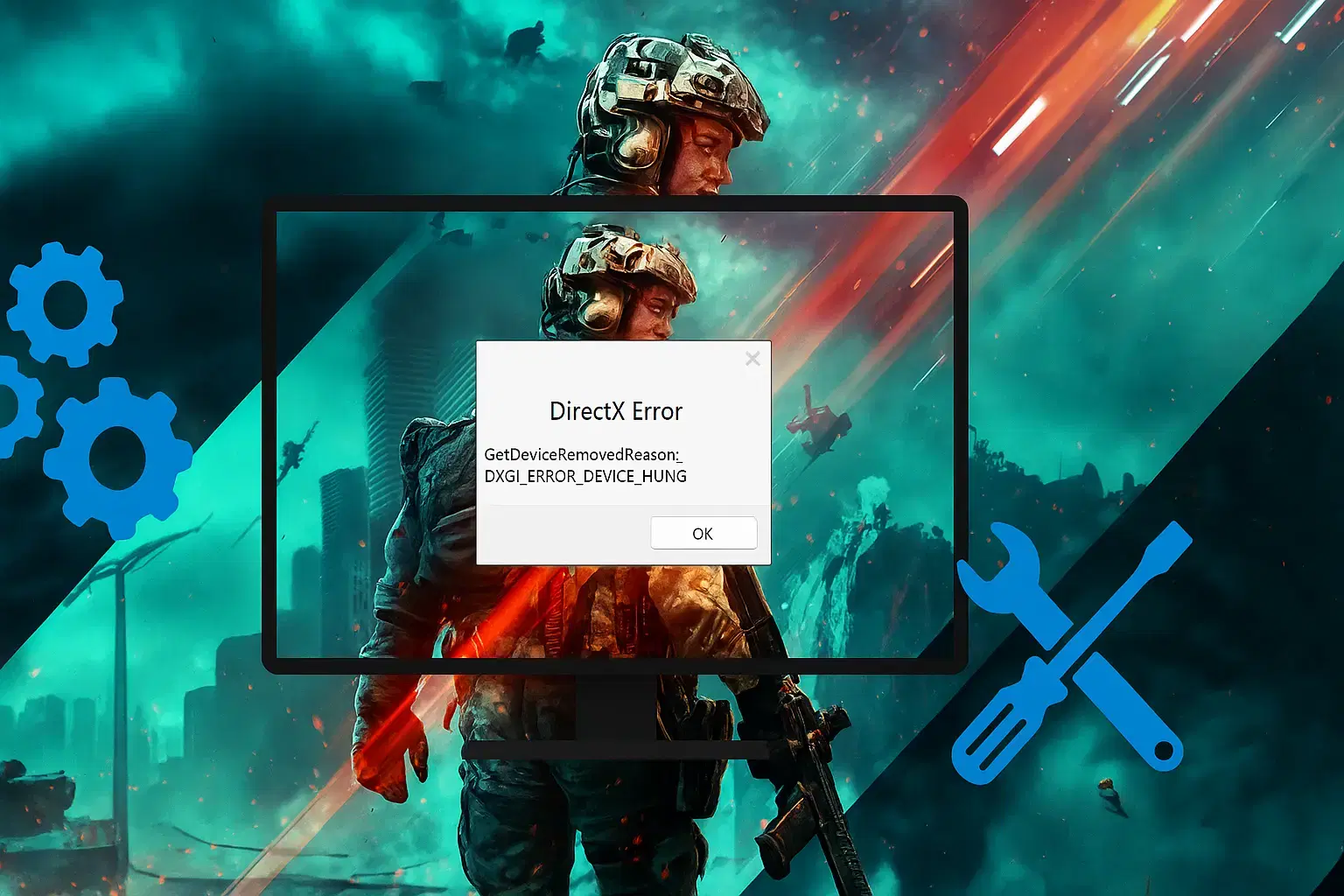
If you play on PC, nothing feels worse than the Battlefield 6 Direct X error popping up right when you are ready to jump into a match. It stops your game, throws you to the desktop, and leaves you confused. You may think your PC is broken, but the real cause is often simple. And with the right steps, you can fix it fast.

This guide walks you through the most common reasons this happens and shows you how to solve each one. Every step is easy to follow, even if you are not a tech expert. By the end, you should get Battlefield 6 running again without constant crashes.

Why The Battlefield 6 Direct X Error Happens

Before you fix anything, you need to know what the error means. When you see the Battlefield 6 Direct X error, it usually means the game is trying to use the wrong GPU, you have outdated drivers, or DirectX 12 is not set up properly on your system.

Sometimes, your PC has two GPUs. One is integrated, and the other is the dedicated one. Battlefield 6 needs the dedicated GPU. If the game loads using the integrated GPU, it may crash at launch.

In many cases, players on Reddit and forums also shared that their GPU settings, overlays, or even overclocking tools caused these crashes. So you will fix this by checking each part step by step.

#1 Check If You Have a Dedicated GPU

Check If You Have a Dedicated GPU

This is the first thing you should confirm. Many players discovered that their laptop model looked the same as their friend’s, but the inside specs were different.

You should check for AMD or Nvidia stickers on your laptop. If you do not see one, your device may not have a dedicated GPU at all. Battlefield 6 requires one, so the game will fail to run.

If you do have one, then the game may be selecting the wrong GPU, which you can fix next.

#2 Force Battlefield 6 To Use Your Dedicated GPU

You can force Windows to use your main GPU for Battlefield 6. This tells Windows to always use the GPU that BF6 needs. After this, launch the game again and check if the issue is gone.

Force Battlefield 6 To Use Your Dedicated GPU

Follow these simple steps:

  1. Click the Windows Start icon.

  2. Go to Settings.

  3. Open System.

  4. Select Display.

  5. Scroll to Graphics.

  6. Add BF6.exe and EAAntiCheat if they are not listed.

  7. Set both to High Performance.

#3 Update Your GPU Drivers

Outdated drivers cause many DirectX crashes. You should open your GPU control panel or go to your brand’s website. Download the newest driver and install it.

If you want to do it right, choose the clean install option. This removes older files that may cause conflicts. After restarting your PC, launch Battlefield 6 again.

Many players said this alone fixed their Battlefield 6 Direct X error.

#4 Turn Off Overlays and Background Tools

Turn Off Overlays and Background Tools

Tools like MSI Afterburner, Discord overlay, Steam overlay, or performance monitors may conflict with Battlefield 6. One player fixed their RTX 3080 crashes simply by closing MSI Afterburner.

Do this:

  1. Close every overlay.

  2. Quit background apps that hook into games.

  3. Restart your PC.

  4. Next, test Battlefield 6 again.

#5 Change the DirectX Setting in the Game Files

DirectX Setting - How To Fix Battlefield 6 Direct X Error

You can manually switch the DirectX setting inside the game’s profile file. Many players reported stable BF6 gameplay after changing this value.

Try this method:

  1. Open Documents.

  2. Enter the Battlefield 6 folder.

  3. Go to Settings.

  4. Open PROFSAVE_profile in Notepad.

  5. Find GstRender.Dx12Enable.

  6. Set the value from 0 to 1 or from 1 to 0.

  7. Save and close.

#6 Disable Extra Game Features

Some features like DLSS frame generation or certain graphics boosts may trigger DirectX issues. If you turned these on, switch them off.

You should also set a frame cap or try V Sync. These settings lighten the workload on your GPU and help with stability.

#7 Clear Your Shader Cache

The shader cache can become corrupted. This forces the game to load broken data, which triggers DirectX crashes.

To clear the cache:

  1. Open Windows Settings.

  2. Go to System.

  3. Open Storage.

  4. Select Temporary Files.

  5. Remove DirectX Shader Cache.

#8 Try Rolling Back Drivers

Some users said the latest GPU driver caused their DirectX crash. Rolling back to a previous driver fixed it for them.

You can do this only if you know your game started crashing right after a driver update. Roll back, restart, and test again.

#9 Disable Steam Launch Options or Add a DirectX Command

Steam Launch Options - How To Fix Battlefield 6 Direct X Error

Some players had luck adding a specific command in Steam. This forces the game to run in DirectX 11 mode instead of DirectX 12. Many players said this removed their crashes completely.

Try this:

  1. Right click Battlefield 6 in Steam.

  2. Select Properties.

  3. Go to Launch Options.

  4. Type: --use--d3d11

You can mix this with the Dx12Enable setting if needed.

#10 Check Your PC Temperatures

If your GPU runs too hot, it may crash. Dust and poor ventilation cause this. You should clean your fans, check your case airflow, and monitor temperatures while you play.

If you see instant temperature spikes before a crash, you found the problem.

#11 Reinstall The Game

If nothing helps, reinstall Battlefield 6. Sometimes game files become corrupted beyond simple repair. A clean install gives you fresh files and new shaders.

This might sound slow, but it solves a lot of stubborn problems.

Lastly

The Battlefield 6 Direct X error can be frustrating, but most solutions are simple. You can fix it by forcing the game to use your dedicated GPU, updating drivers, turning off overlays, changing DirectX settings, clearing shader caches, or rolling back unstable drivers. Take your time, test each method, and you should get Battlefield 6 running smoothly.

Zaryab Shafiq
Zaryab Shafiq
Read more